| ||||

Bookmarks Page |

Whenever you see the My Bookmarks link on the Ablemarks site, it will bring you to this main display of your tabs and bookmarks. Home Page Advantage
Top Section |
 It's important to experience Ablemarks at it's finest, and that's when your
This section contains our logo, a page title that you can set, and some key links. Our logo is linked to our home page. The page title in the center you can set via the Settings link. The links to the right let you review and adjust your account's Settings, view these Help pages, or Sign Out. Above the Sign Out link is the ID of the Ablemarks Account your are signed into. If you are using the account's Public Password, the word (public) will follow the ID. Ablemarks uses cookies to keep you signed in, even when you exit your browser, and when you turn off your PC. If you are the sole user of your computers, you do not need to sign out of Ablemarks. When you are using someone else's computer, or share a computer, it is best to sign out of Ablemarks when you are finished. This avoids having others on that computer use or change your bookmarks after you are through. Search Bar Section |

The Search Bar of the Bookmarks page simplifies common Web and Ablemarks tasks. These include searching the Web, finding a bookmark, visiting a URL, adding a bookmark, and using bookmarks with variables. The different Search Bar options are set via the Settings page.
Search Web - When you enter text in the Search box and hit the Return key or Search button, you are shown the web search results from that search engine. One click of your browsers Back or Home button, and you're looking at your bookmarks again. Select your preferred search engine via the Settings page. If you select the 'No Search Bar' option, you will not be able to use the Find bookmark, Go to URL or Add bookmark features, or be able to use variables in your bookmarks. Find Bookmark - Since you could have up to 1000 bookmarks among 8 tabs, you may want to search for a bookmark. Enter text you think is part of the bookmark name or URL. Click 'Find' link to see those bookmark's with that string. Use the 'Back to Bookmarks' link or click on a tab to get back to your bookmarks. Go to URL - Immediately visit a Web Address. Say you want to visit Adobe, but don't have them bookmarked. Type in adobe and click 'Go to URL' link to visit http://www.adobe.com/. This also works with email addresses. Paste frank.wilson@timeme.com in the Search box, and click 'Go to URL' link to visit http://www.timeme.com/. Add Bookmark - Fastest way to add a bookmark. Type in or paste a bookmark name or URL in the Search box and click the 'Add' link to have it added to the end of the current tab. If you enter just a name, the bookmark URL will be extracted from the name. If you enter just the URL, a bookmark name will be extracted from the URL. If you enter both a name and URL, they will be cleaned up before being added. Here are examples . . .
See the Adding Bookmarks help page to learn the fastest way to add a bookmark for a Web page you're visiting. Bookmark Variables - The Search Bar fills one more task, and that is to enter text used in bookmarks you have setup with variables. Variables let you incorporate text in the Search box in your bookmark's URL. For example, you can set up a bookmark that will display Google's weather forecast for your local zip code, or for the zip code entered in the Search box. The bookmark below will do this . . . Weather http://www.google.com/search?q=weather+{{{Zip Code/d:84062}}} The bookmark variable is between the triple curly-brackets. See the Bookmark Variables help page for more on this. To use variables in your links, you need to have the Search Bar feature turned on via the Settings page. Tabs Section | |||||||||||||||||||||||||||||||||||||||||||

|
The current tab will be highlighted from the others. You must have at least one tab, and can have up to 8. The links to the right of the tabs act on the tabs. To edit the bookmarks on the Work tab, first click the Work tab to select it, and then click the 'Edit' link. The Edit Tab page will then display the contents of the Work tab, ready for editing. For more information on editing, visit Editing Bookmarks help page. The 'Delete' link removes a tab and it's bookmarks, after your confirmation. The 'New' link creates a new tab named (new). You can then click the 'Edit' link to add bookmarks and headings to this new tab. On the Edit Tab page you can change the tab's name. The 'Order' link lets you change the order of your tabs, set the public option for each tab, edit your tab names, create new tabs, and remove empty tabs. For more, visit the Edit Tab Order help page. Bookmarks Section |
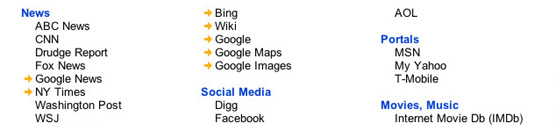
This section displays the bookmarks and headings for the selected tab. The headings are bold and left justified. You can adjust the bookmark indentation (0 to 8 spaces) and the bookmark underlining (on / off) on the Settings page. The bookmarks are all active links. To visit a bookmark's web page, click on it. For help on editing a tab's heading and bookmarks, see the Editing Bookmarks help page. You can highlight specific bookmarks and headings when editing them. This is explained on the Bookmark Highlights help page. |
Ablemarks - Use of website signifies agreement to Terms of Use and Privacy
Policy - Sign Up
Copyright (c) 2019 Ablemarks - Site Map - Contact Us